
Priskribo
ModuleFest Media Library Manager shows you exactly where every file in your Media Library is used, finds the files nothing uses any more, and lets you clean them up safely. Nothing is deleted straight away: files go to a Recycle Bin first, and you can restore them at any time until the retention period you choose runs out.
Everything here is free
Every feature described on this page is included in this plugin. Nothing is hidden or held back, and the plugin never asks you to register.
Video guides
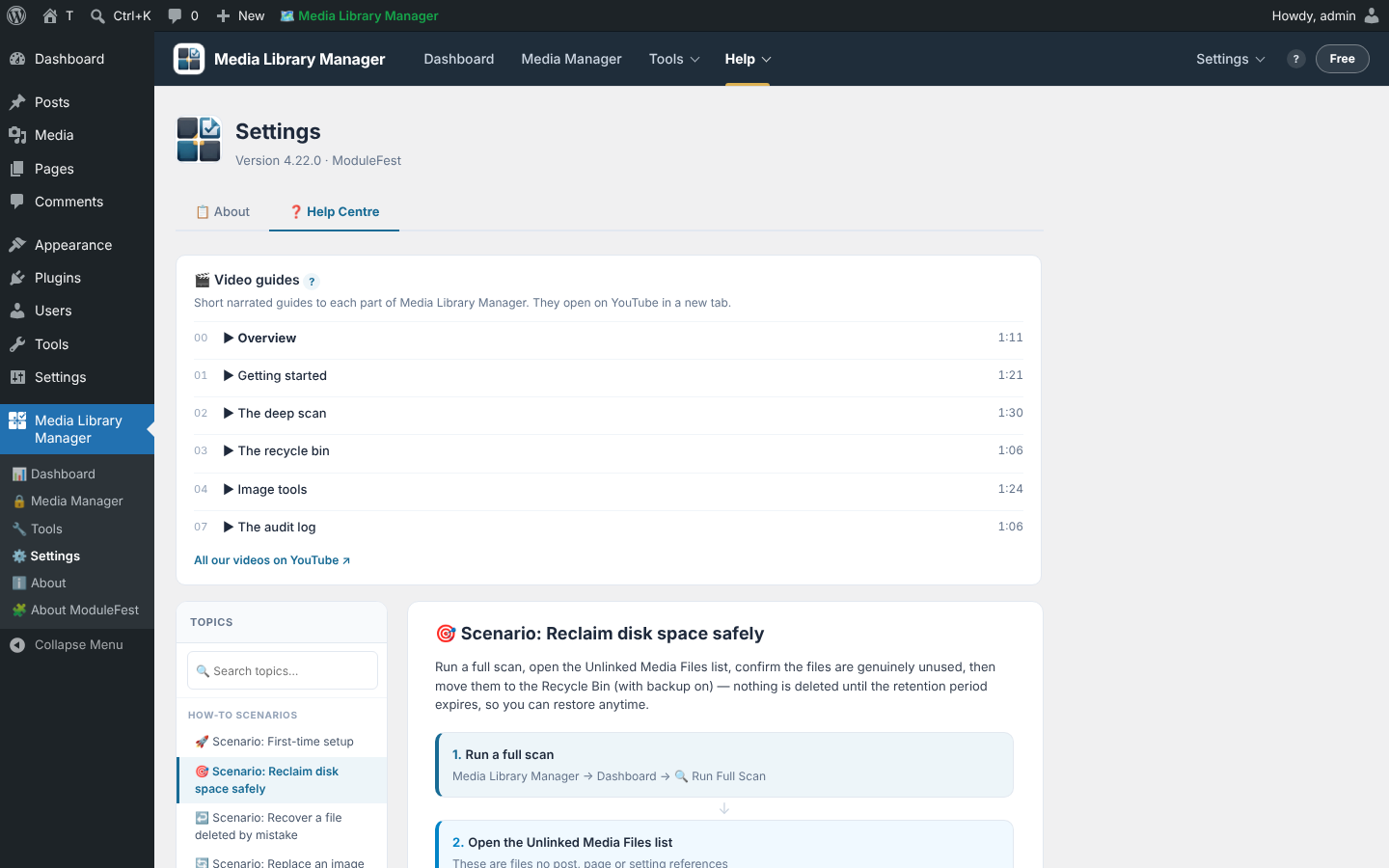
Seven short narrated videos show each part of Media Library Manager: an overview, getting started, the deep scan, the recycle bin, image tools, duplicates, folders and cleanup rules, and the audit log. Each Media Library Manager screen and help topic links to its own video, and the About page and Help Centre list them all. They open on YouTube in a new tab; nothing is loaded from YouTube inside your WordPress admin. Watch them all in order in the Media Library Manager playlist.
More from ModuleFest
Media Library Manager is made by ModuleFest. Our other free plugins are listed on our WordPress.org profile, for example ModuleFest Pet Groomer and ModuleFest Pet Walker, and on Media Library Manager’s About ModuleFest screen. Nothing is installed unless you choose to install it yourself from WordPress.org.
If you’d like Media Library Manager tips and update notes by email, the About ModuleFest screen has an optional Get news for Media Library Manager sign-up. Nothing is sent unless you tick its box and press Subscribe, and no part of the plugin depends on it. Full guides: modulefest.com/help/modulefest-media-library-manager.
Features
- Media usage map – every file shows where it is used: posts, pages, blocks, featured images, galleries, page builders and theme settings.
- Unused media scanner – a batched, resumable deep scan finds files nothing references, with a live progress bar and time estimate. Filter results by type, date, size, folder or tag.
- Recycle Bin – move files to the bin instead of deleting them. Choose how long they stay (7, 30, 90 days or your own period), restore them individually or in bulk, and export the bin to CSV or a printable report.
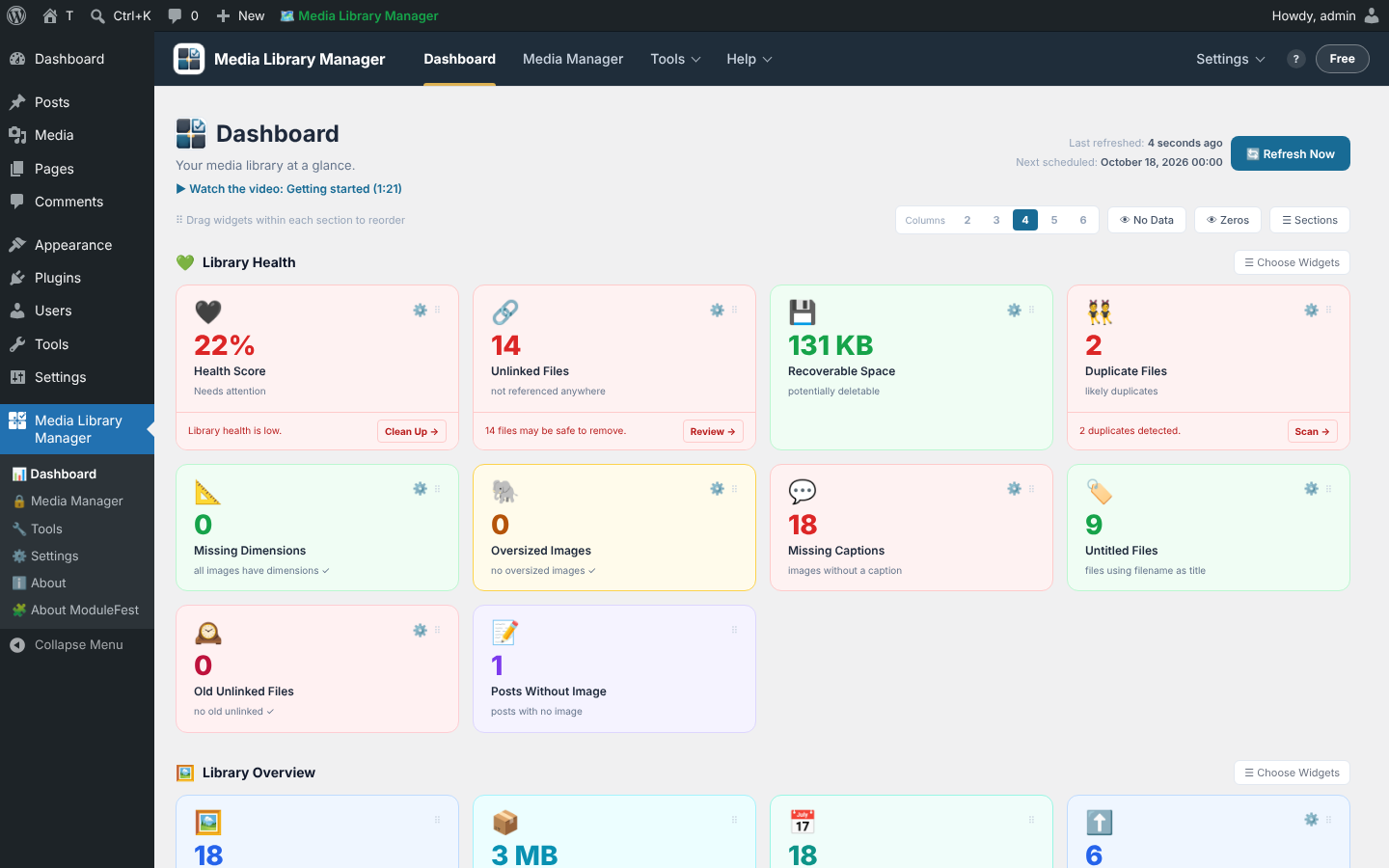
- KPI Dashboard – 30+ library health metrics in five sections, with a health score, threshold alerts, drag-to-reorder cards and a scheduled refresh.
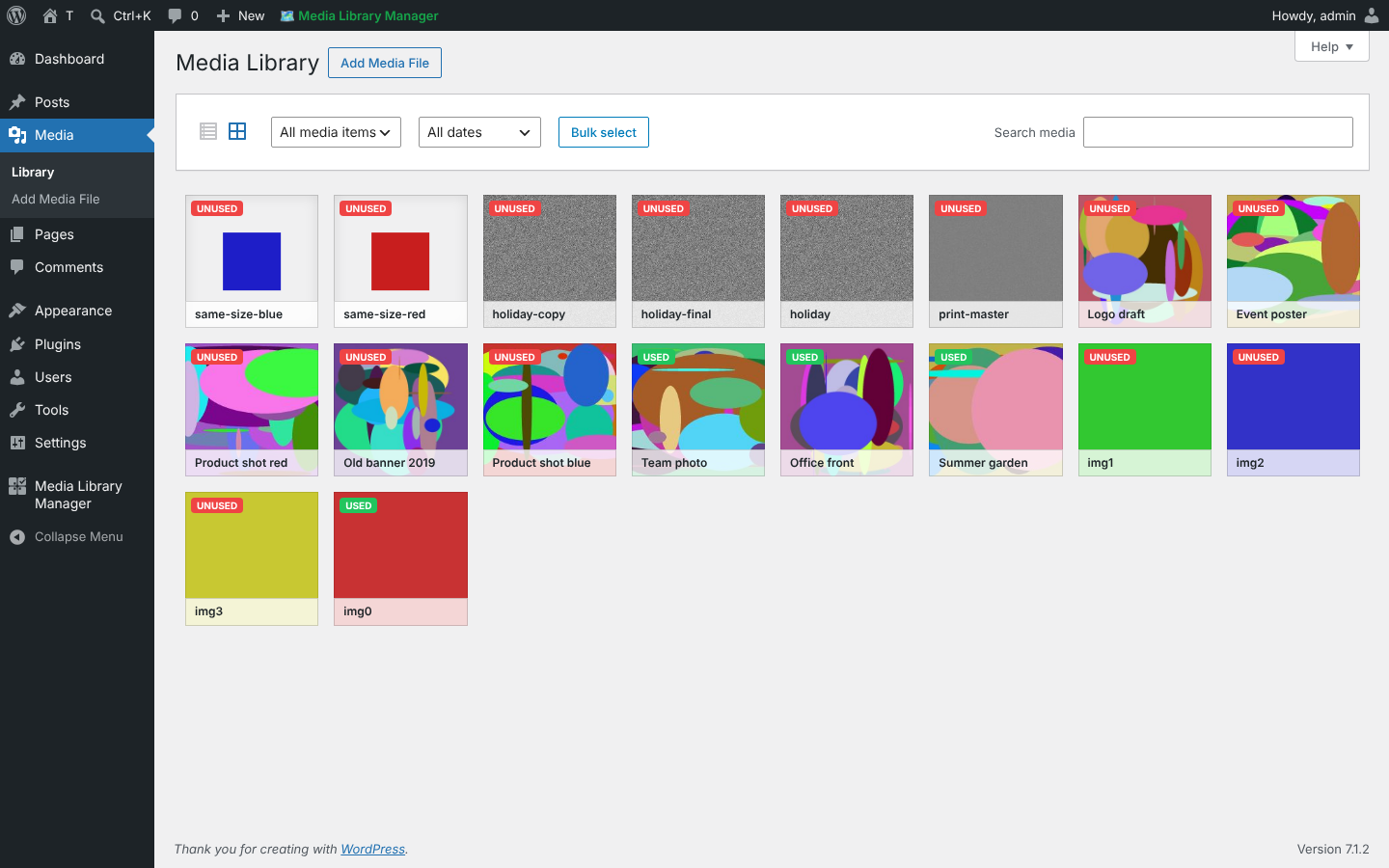
- Grid overlays – 14 styles mark used and unused files on every Media Library thumbnail, in colours you choose.
- Virtual folders and tags – organise media into folders and tags without moving files on disk, and filter the Media Library by tag.
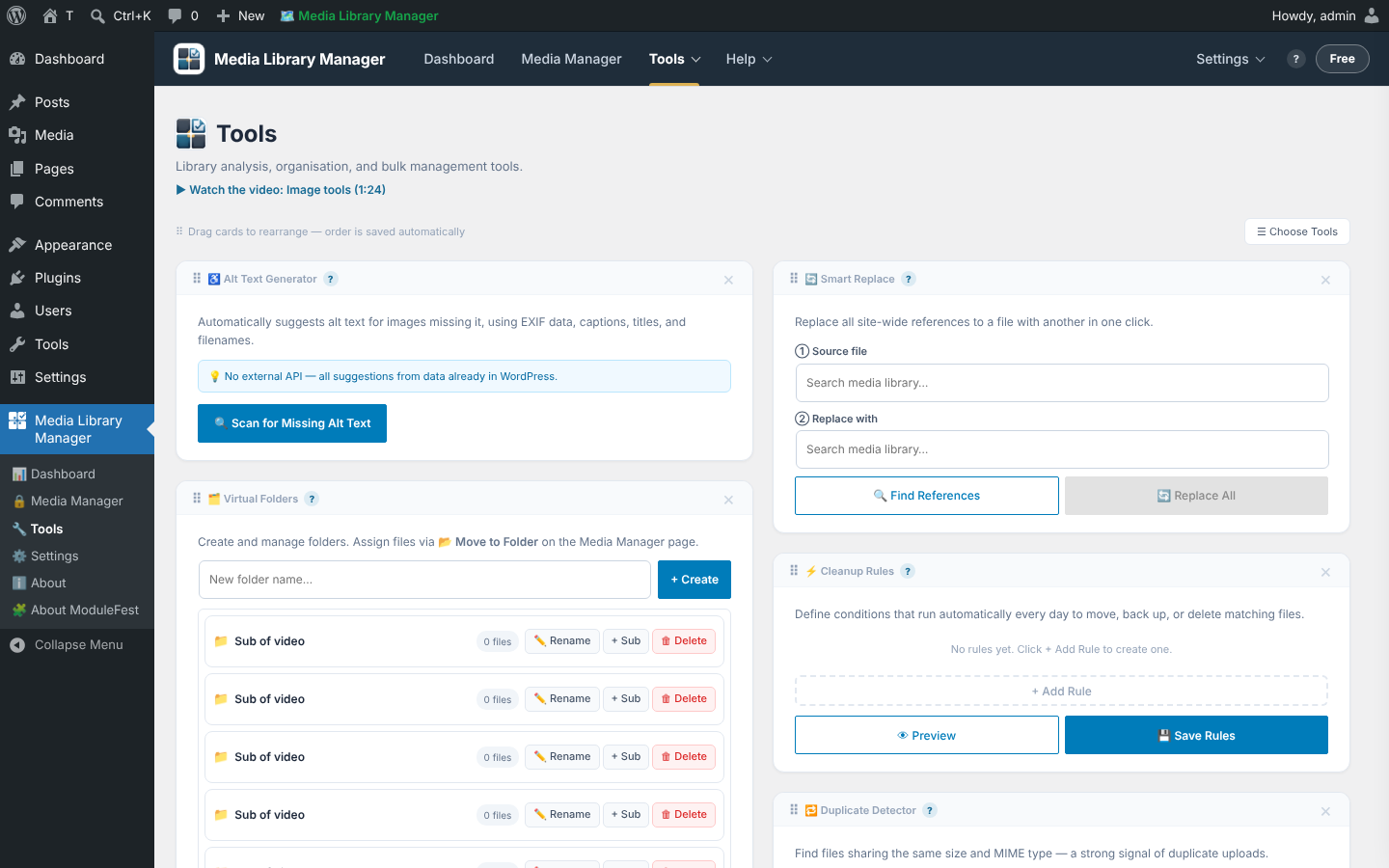
- Cleanup rules – rules that run on your schedule (every hour, twice a day, daily or weekly, at the time you choose), such as “move unused PDFs older than a year to the Recycle Bin”, with a preview before they run.
- Image tools – resize and compress images (one at a time, in bulk, or by right-clicking in the Media Library), with optional WebP. The original is backed up first and can be restored.
- Smart Replace – swap one image for another everywhere it is used.
- Alt text generator – suggests alt text from the file name, title and caption for images that have none.
- Unused image sizes – finds resized copies left behind by themes and plugins you no longer use, keeps any copy your content still points at, and moves the rest to a bin you can restore from.
- Finders – duplicate files, broken file records, dead links in your content and a compression advisor.
- Cloud backup and import – connect your own Google Drive, Dropbox, OneDrive, Amazon S3 (or S3-compatible storage), FTP/SFTP or WebDAV, back files up before they are deleted, and import files into the Media Library.
- Weekly digest email – a summary of your library sent to the address you choose.
- Audit trail – every Media Library Manager action is logged, with filters and CSV export.
- Built-in help – a help drawer on every screen, step-by-step How-To scenarios and a searchable Help Centre.
Privacy and external services
Media Library Manager sends no analytics, usage data or site details anywhere, and never contacts our servers on its own. The only time it contacts ModuleFest is when you ask for our newsletter (see “ModuleFest newsletter sign-up” below).
Otherwise it only connects to an outside service when you set that service up yourself, using your own account and your own API keys. Each one is listed below.
Google Drive (Google LLC)
Used for cloud backup and cloud import, only after you add your own Google OAuth client ID and secret and click Connect. When you sign in, your browser is sent to Google to approve access; Media Library Manager then exchanges the returned code for an access token at oauth2.googleapis.com. After that, when you back up, browse, import or create a folder, Media Library Manager sends the file (its contents, name and type) or the folder request to www.googleapis.com. Nothing is sent until you connect, and nothing is sent after you disconnect.
Terms: https://policies.google.com/terms – Privacy: https://policies.google.com/privacy
Dropbox (Dropbox, Inc.)
Used for cloud backup and cloud import, only after you add your own Dropbox app key and secret and click Connect. Sign-in happens on www.dropbox.com; tokens are exchanged at api.dropboxapi.com. When you back up, browse, import or create a folder, the file contents, name and folder path are sent to api.dropboxapi.com and content.dropboxapi.com.
Terms: https://www.dropbox.com/terms – Privacy: https://www.dropbox.com/privacy
Microsoft OneDrive (Microsoft Corporation)
Used for cloud backup and cloud import, only after you add your own Microsoft app client ID and secret and click Connect. Sign-in happens on login.microsoftonline.com. When you back up, browse, import or create a folder, the file contents, name and folder path are sent to graph.microsoft.com.
Terms: https://www.microsoft.com/en-us/servicesagreement – Privacy: https://www.microsoft.com/en-us/privacy/privacystatement
Amazon S3 and S3-compatible storage (Amazon Web Services, Cloudflare R2, Backblaze B2, Wasabi, DigitalOcean Spaces)
Used for cloud backup, only after you enter your own access key, secret, bucket and region. When a file is backed up, its contents and name are sent to the bucket endpoint you entered (for AWS, s3..amazonaws.com). Requests are signed locally with your keys.
AWS terms: https://aws.amazon.com/service-terms/ – AWS privacy: https://aws.amazon.com/privacy/
Cloudflare: https://www.cloudflare.com/terms/ and https://www.cloudflare.com/privacypolicy/ – Backblaze: https://www.backblaze.com/company/policy/terms-of-service and https://www.backblaze.com/company/policy/privacy – Wasabi: https://wasabi.com/legal/terms-of-use and https://wasabi.com/legal/privacy-policy – DigitalOcean: https://www.digitalocean.com/legal/terms-of-service-agreement and https://www.digitalocean.com/legal/privacy-policy
FTP / SFTP and WebDAV servers
Used for cloud backup and import, only after you enter the address and login of a server you control (for example your own host, a Nextcloud instance or a Hetzner Storage Box). Files are sent to and read from that server only. Its terms and privacy policy are those of whoever runs it.
WordPress.org plugin details (About ModuleFest screen)
The “More free plugins from ModuleFest” box on Media Library Manager’s About ModuleFest screen links to our other plugins. “View details” opens WordPress’s own plugin details window, which WordPress loads from WordPress.org (api.wordpress.org) only when you click it. Nothing is sent by Media Library Manager itself. WordPress.org privacy policy: https://wordpress.org/about/privacy/
ModuleFest newsletter sign-up (support.modulefest.com)
What it is: ModuleFest’s newsletter for Media Library Manager (tips, new features and update notes).
What is sent: your name, your email address, this site’s address (home URL), the plugin name and version, and the wording of the consent box you ticked.
When: only when you tick the consent box and press Subscribe on the “Get news for Media Library Manager” card (Media Library Manager About ModuleFest). Nothing is sent on activation, on a schedule, when you dismiss the card, or in the background, and Media Library Manager does not keep your email address.
Why: to send you the newsletter you asked for. ModuleFest emails you a confirmation link first; you can unsubscribe at any time from any newsletter or at https://modulefest.com/newsletter/?leave=1
Privacy policy: https://modulefest.com/privacy/ – Terms: https://modulefest.com/terms/
YouTube (video guide links only)
The “Watch the video” links and the Video guides list open videos on youtube.com in a new browser tab, only when you click one. Media Library Manager does not embed a player, load thumbnails or contact YouTube itself. YouTube terms: https://www.youtube.com/static?template=terms – Google privacy policy: https://policies.google.com/privacy
Dead link scanner (optional external check)
The Dead Link Scanner checks links inside your own posts and pages. Links to files on your own site are checked on your server. Links to other websites are only checked when you tick “Check external links” before a scan; Media Library Manager then sends a HEAD request (no data, just the address) to each linked website to see whether the page still exists. Each site’s own terms and privacy policy apply.
The plugin stores your cloud tokens and keys in your WordPress database. Deleting the plugin removes them, along with all other Media Library Manager settings and its audit table.
Source code
There is no build step. Every PHP, JavaScript and CSS file in the plugin is the readable source, with its comments, exactly as it is maintained.
Third-party code
None. Media Library Manager bundles no third-party libraries; it uses jQuery and the image editor that ship with WordPress.
Ekrankopioj


Instalo
- In WordPress, go to Plugins Add New, search for “ModuleFest Media Library Manager” and click Install Now, then Activate. (Or upload the
modulefest-media-library-managerfolder to/wp-content/plugins/and activate it.) - Open Media Library Manager Dashboard and click Refresh Now to build your first set of metrics.
- Open Media Library Manager Media Manager and click Run Full Scan to find unused files.
- Review the results. Nothing changes until you choose to move files to the Recycle Bin.
OD
-
Will Media Library Manager delete my files?
-
Not without you asking. Files you choose are moved to the Recycle Bin first. They are only deleted permanently when the retention period you set runs out, or when you empty them from the bin yourself. You can restore them at any time before that.
-
How does it decide a file is unused?
-
It looks for the file’s ID, URL and file name in post and page content (including blocks), featured images, galleries, widgets, theme settings and common page builders. A file that is not found anywhere is listed as unused. Always review the list before moving anything; you can mark files you want to keep so they are never flagged.
-
Does it slow my site down?
-
No. Media Library Manager only runs in the WordPress admin. Scans run in small batches in the background, and nothing is added to your site’s front end.
-
Does it send my data anywhere?
-
No, not unless you ask. See “Privacy and external services” above: the only outside connections are the cloud services you connect yourself, the optional external link check, and the newsletter sign-up if you choose to subscribe.
-
Is everything included?
-
Yes. Everything described on this page is in this plugin and free.
-
Do you make other plugins?
-
Yes. ModuleFest’s other free plugins are listed at https://wordpress.org/plugins/author/modulefest/ and on Media Library Manager’s About ModuleFest screen. You can also visit https://modulefest.com/.
-
Yes, and it is optional. Use the “Get news for Media Library Manager” card on the About ModuleFest screen, or https://modulefest.com/newsletter/. Nothing is sent from your site unless you tick the box and press Subscribe.
-
Are there video guides?
-
Yes: seven short narrated videos, from an overview to the audit log. Watch them all in the Media Library Manager playlist on YouTube, or use the “Watch the video” links on each screen and help topic.
-
Where do I get help?
-
Every Media Library Manager screen has a help (?) button, and Settings Help Centre has step-by-step guides. For anything else, please post in this plugin’s support forum on WordPress.org.
Pritaksoj
There are no reviews for this plugin.
Kontribuantoj k. programistoj
“ModuleFest Media Library Manager” estas liberkoda programo. La sekvaj homoj kontribuis al la kromprogramo.
Kontribuantoj
Traduki “ModuleFest Media Library Manager” en vian lingvon.
Ĉu interesita en programado?
Browse the code, check out the SVN repository, or subscribe to the development log by RSS.
Ŝanĝprotokolo
4.24.0
- First release on WordPress.org.
- Every feature is included and free.
- The plugin never contacts our servers: no update checks, no support-desk link and no usage statistics.
- Scripts and styles now load as separate, readable files through WordPress’ standard loader, with no inline code in the page.
- Security hardening throughout: every request that changes data checks a nonce and the user’s permissions, every input is sanitised and every output is escaped.
- Safer file handling: files are removed with WordPress’ own functions, and the dead link scanner refuses to probe private network addresses.